
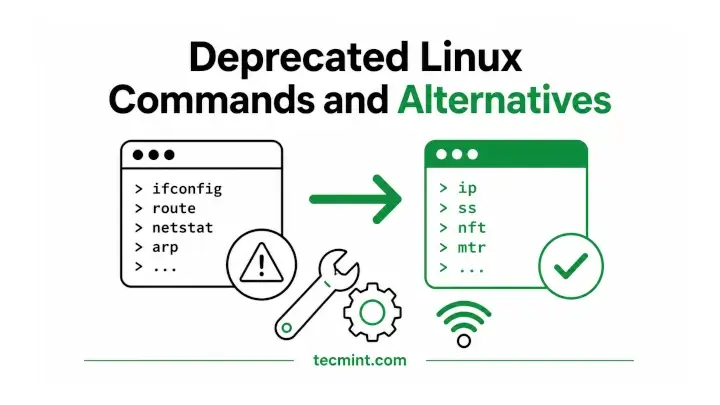
Linux provides tons of command line utilities that Linux administrators learned years ago are now outdated. They still work, the man pages are still there, and nobody’s going to stop you from using them, but most are no longer actively maintained.
Modern replacements do the same job more efficiently and are available by default on most Linux distributions.
Many of older commands are networking utilities that are provided by the net-tools package, which has not been actively maintained for years. Some Linux distributions don’t even install it by default anymore.
Here are 9 deprecated Linux commands, why they were replaced, and what you should use instead.
1. ifconfig Command
The Linux ifconfig command was traditionally used to view and configure network interfaces. You could use it to check IP addresses, enable or disable interfaces, change the MTU, view MAC addresses, and perform other basic network tasks.
For many years, it was one of the first commands Linux admins used after logging into a server. Today, ifconfig has been replaced by the ip command from the iproute2 package.
ip address
ip addr
ip a
ip link
All of these commands display network interface information. The only difference is that ip addr and ip a are shorter forms of ip address, with ip a being the abbreviation most Linux users type.
The ip command is more powerful, actively maintained, and provides a consistent interface for managing networking tasks.
Because of this, many modern Linux distributions including minimal installations of Debian, Ubuntu, Fedora, and RHEL no longer install the old net-tools package by default, so ifconfig may not even be available unless you install it yourself.
2. netstat Command
The Linux netstat command displays active network connections, listening ports, routing tables, and network interface statistics. For many years, it was the go-to tool for troubleshooting network connectivity and checking which services were listening on specific ports.
Today, its modern replacement is ss command, which retrieves socket information directly from the kernel, making it significantly faster and more efficient, especially on systems with a large number of active connections.
ss -t
ss -l
ss -tulpn
These commands show TCP connections, listening sockets, and all listening TCP/UDP ports along with the process using each port.
The ss command is faster because it communicates directly with the Linux kernel instead of reading information from /proc. It’s also actively maintained and handles systems with a large number of network connections much more efficiently.
As a result, ss is now the recommended tool for checking network connections and open ports on modern Linux systems.
3. scp Command
The scp command has been used for decades to securely copy files between Linux systems over SSH. It’s simple, familiar, and still widely available. However, the original SCP protocol has several design limitations and security concerns.
Because of this, RHEL 9 deprecated support for the legacy SCP protocol, and modern OpenSSH versions use the SFTP protocol by default. For many file transfer tasks, rsync or sftp are now the better choices:
rsync -zvh backup.tar.bz2 /tmp/backups/
sftp [email protected]
rsync is ideal for backups and repeated file transfers because it copies only the parts of a file that have changed, whereas sftp provides an interactive file transfer session with features like directory browsing, making it a good alternative for users who previously relied on scp.
4. route Command
The route command displays and modifies the kernel’s IP routing table. Today, it’s been replaced by ip route, which is part of the ip command suite used for managing interfaces, addresses, routes, and neighboring hosts.
ip route
ip route show
This command displays the system’s routing table. Besides viewing routes, the ip route command can also add, delete, and modify routes using a consistent syntax with the rest of the ip networking commands.
5. egrep and fgrep Commands
The egrep and fgrep commands are both part of the grep family:
egrepsearches using extended regular expressions.fgrepsearches for fixed text strings instead of regular expressions.
Although both commands still work on many systems, they have been deprecated in GNU grep. Instead, use the equivalent grep options:
grep -E    # replaces egrep
grep -F    # replaces fgrep
These options provide the same functionality while keeping everything within a single grep command. Using grep -E and grep -F is now the recommended and more portable approach across modern Linux distributions.
6. arp, iptunnel, and nameif Commands
Several other commands from the old net-tools package have also been replaced by the ip command from the iproute2 suite. Instead of using separate utilities, modern Linux systems handle these networking tasks through a single, consistent command.
Use these modern equivalents:
ip neighbor    # replaces arp
ip n           # short form of ip neighbor
ip tunnel      # replaces iptunnel
ip link        # replaces nameif
The ip command brings these networking tasks together under a single, consistent tool that is actively maintained and available on modern Linux distributions.
7. iptables Command
The iptables command has been the standard Linux firewall tool for more than two decades. Today, however, most Linux distributions have transitioned to nftables as the preferred packet-filtering framework.
RHEL, Rocky Linux, and Fedora use nftables by default, while Debian and Ubuntu run iptables through an nftables compatibility layer instead of the legacy implementation.
nft list ruleset
nft add rule inet filter input tcp dport 22 accept
The first command displays the current firewall rules, while the second adds a rule to allow incoming SSH connections on port 22.
If you already have existing iptables rules, you don’t have to rewrite everything manually. The iptables-translate utility can convert individual iptables rules into their nftables equivalents, making the migration much easier.
8. traceroute Command
The traceroute command maps the network path between your system and a destination by sending probes with gradually increasing TTL (Time To Live) values. It provides a snapshot of the route at a single point in time.
For continuous network diagnostics, mtr (My Traceroute) is usually a better choice because it combines the functionality of traceroute and ping into a real-time view, making it easier to identify packet loss, latency, and unstable network hops.
mtr tecmint.com
mtr -r -c 10 tecmint.com
The first command starts an interactive, real-time view of the network path. The -r option generates a report instead of launching the interactive interface, while -c specifies how many probe cycles to run before the report is displayed.
This format is especially useful when collecting diagnostic information to include in support tickets or troubleshooting reports.
9. ifup and ifdown Commands
The ifup and ifdown commands were traditionally used on Debian-based systems to bring network interfaces up or down using the configuration in /etc/network/interfaces.
On most modern Linux distributions, networking is managed by a network service instead of the old ifupdown scripts.
If your system uses NetworkManager, use:
nmcli device connect eth0
nmcli device disconnect eth0
If your system uses systemd-networkd, you can use:
networkctl up eth0
networkctl down eth0
Ubuntu Desktop and most RHEL-based distributions use NetworkManager by default, while some servers may use systemd-networkd. Minimal Debian or Ubuntu server installations may still use the older ifupdown scripts.
If you’re not sure which networking service your system is using, check it first:
systemctl status NetworkManager
systemctl status systemd-networkd
This helps you choose the correct commands for managing network interfaces on your system.
Conclusion
Most of the commands on this list still work if they’re installed on your system, so there’s no urgent need to stop using them overnight. However, they are no longer the tools that Linux developers actively improve or recommend for day-to-day administration.
Modern replacements such as ip, ss, nft, rsync, and mtr are actively maintained, offer more features, and are the default tools on today’s Linux distributions.
Learning them now will help you build habits that work across current and future Linux systems, without having to switch later when older packages like net-tools are no longer installed by default.
Which of these commands have you already replaced, and which ones are you still using? Let us know in the comments!


